> ## Documentation Index
> Fetch the complete documentation index at: https://docs.gable.ai/llms.txt
> Use this file to discover all available pages before exploring further.
# Field Mappings & Overrides
> Review, suppress, and override lineage paths and field mappings within a service
Use Gable's Component Details page to review, report defects for, suppress, and override lineage paths within a code component or service.
There are two types of paths supported today:
* **Scanned paths** — paths detected by static code analysis. These appear with a source of `SCAN_OUTPUT`.
* **User-created path overrides** — paths manually created by users. These appear with a source of `USER_OVERRIDE`.
Path overrides can be created within code components and services when scanned lineage is incomplete, incorrect, or missing.
## Before you begin
Suppressions and overrides are currently managed at the object path level, not at the individual field level.
This means that hiding or creating a path affects the relationship between the ingress object, egress object, and associated field mappings for that path. Individual field-level suppressions are not currently supported.
## Open the Paths table
1. Open the code component or service you want to inspect.
2. Navigate to **Component Details**.
3. Scroll to the bottom of the page.
4. Expand the **Paths** table.
The **Paths** table shows each path associated with the component.
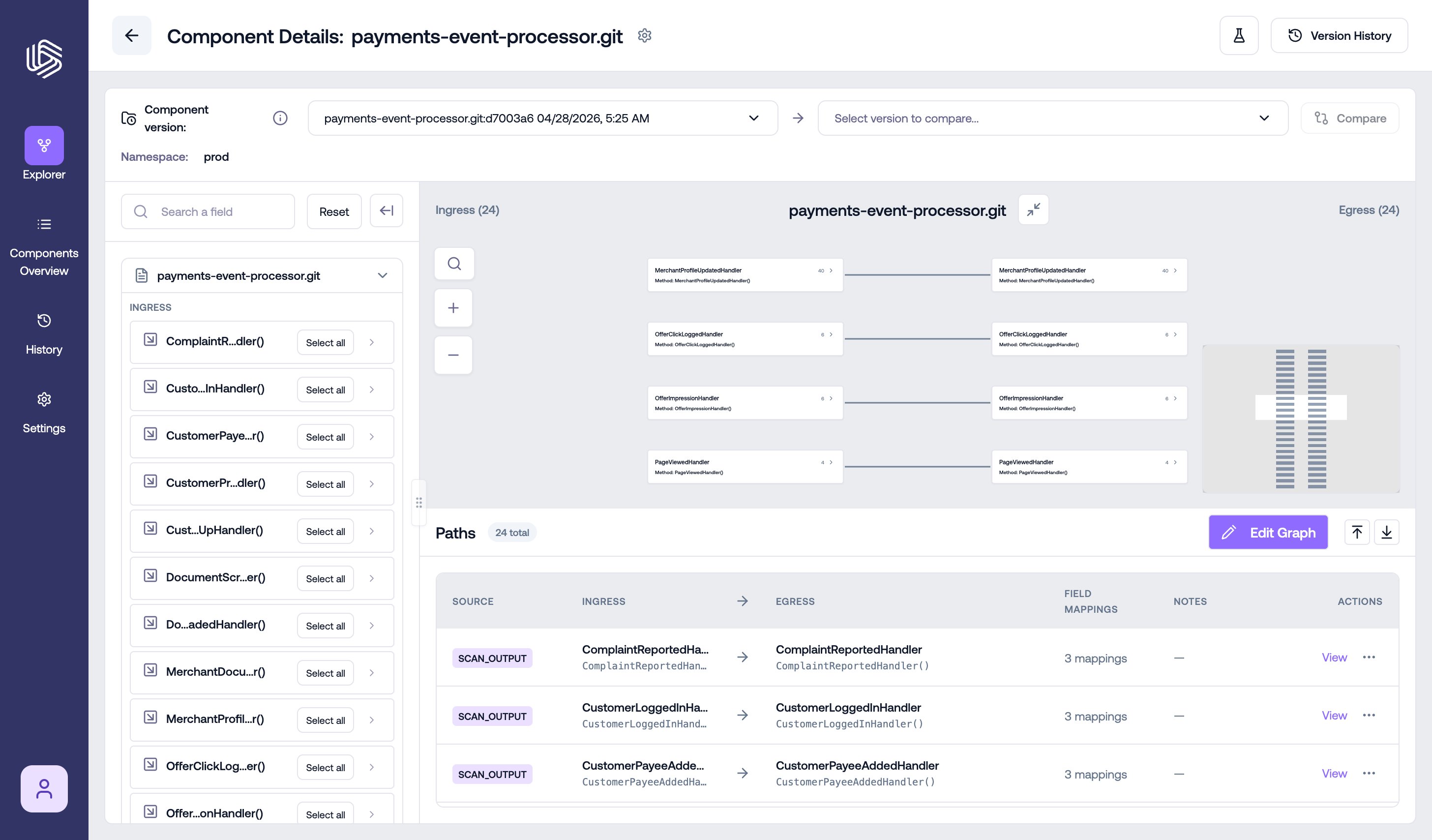 The table includes information such as:
* **Source** — where the path came from, such as `SCAN_OUTPUT` or `USER_OVERRIDE`
* **Ingress** — the incoming object or schema for the path
* **Egress** — the outgoing object or schema for the path
* **Field mappings** — the number of mapped fields in the path
* **Notes** — any user-provided notes or additional context
* **Actions** — available actions for viewing, reporting, hiding, unhiding, or editing the path
To see more information about a path, click **View** in the **Actions** column.
## Reporting a defect
If there is an issue with a path, you can report it to Gable.
Use defect reporting when a scanned or user-created path appears incorrect, incomplete, or unexpected. For example, you may want to report a defect if:
* the ingress or egress object is incorrect
* the path is missing expected field mappings or includes incorrect field mappings
* the path represents lineage that does not exist
To report a defect:
1. Open the **Paths** table.
2. Find the path with the issue.
3. Open the **Actions** overflow menu.
4. Select **Report defect**.
The table includes information such as:
* **Source** — where the path came from, such as `SCAN_OUTPUT` or `USER_OVERRIDE`
* **Ingress** — the incoming object or schema for the path
* **Egress** — the outgoing object or schema for the path
* **Field mappings** — the number of mapped fields in the path
* **Notes** — any user-provided notes or additional context
* **Actions** — available actions for viewing, reporting, hiding, unhiding, or editing the path
To see more information about a path, click **View** in the **Actions** column.
## Reporting a defect
If there is an issue with a path, you can report it to Gable.
Use defect reporting when a scanned or user-created path appears incorrect, incomplete, or unexpected. For example, you may want to report a defect if:
* the ingress or egress object is incorrect
* the path is missing expected field mappings or includes incorrect field mappings
* the path represents lineage that does not exist
To report a defect:
1. Open the **Paths** table.
2. Find the path with the issue.
3. Open the **Actions** overflow menu.
4. Select **Report defect**.
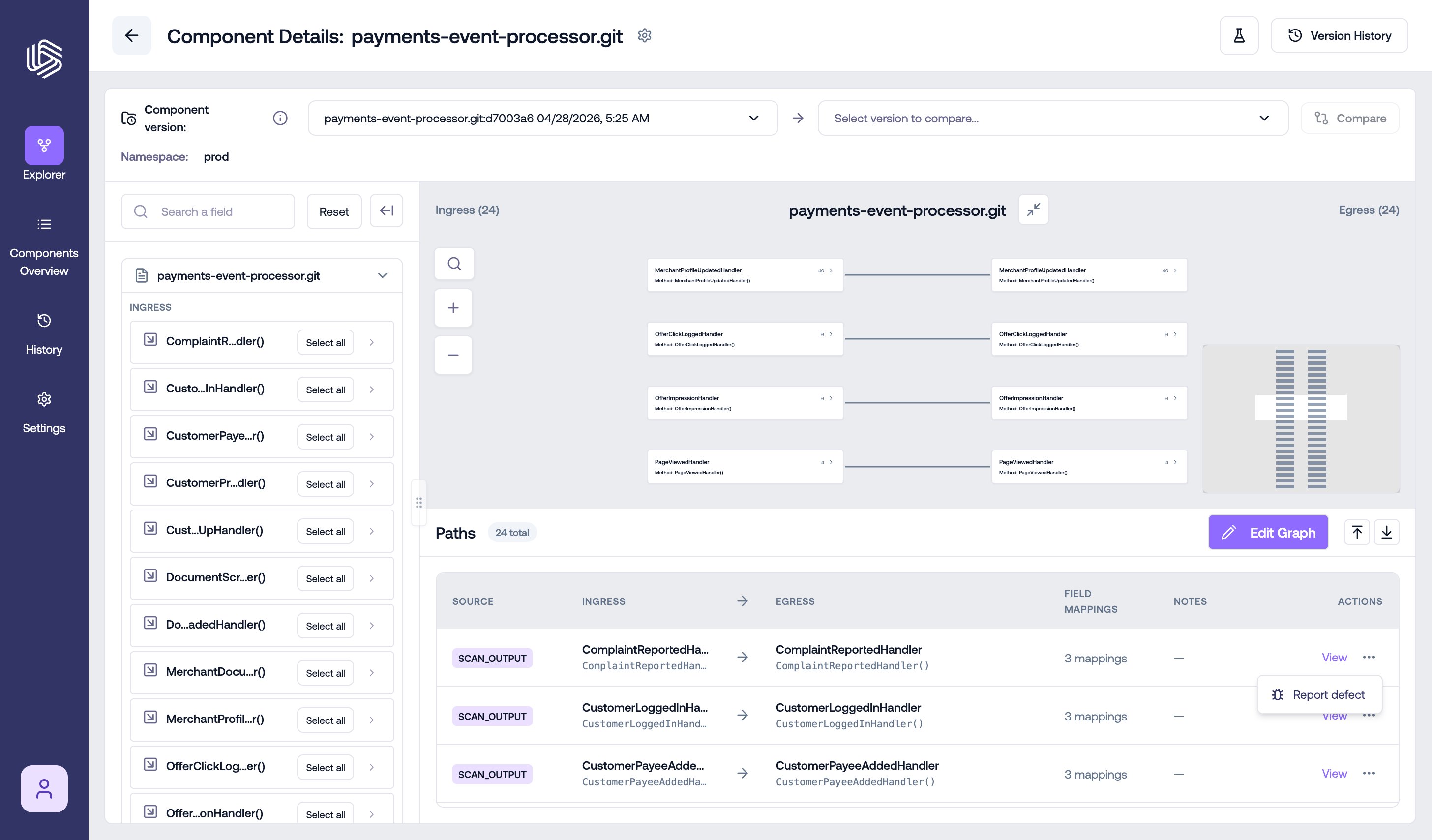 Gable will receive the defect report along with the component version and path information.
## Suppressing a scanned path
If a scanned path does not represent lineage correctly, you can suppress it.
To suppress a scanned path:
1. Open the **Paths** table.
2. Select **Edit Graph** to enter edit mode.
3. Find the scanned path you want to suppress.
4. Open the **Actions** menu for the path.
5. Select **Hide**.
Gable will receive the defect report along with the component version and path information.
## Suppressing a scanned path
If a scanned path does not represent lineage correctly, you can suppress it.
To suppress a scanned path:
1. Open the **Paths** table.
2. Select **Edit Graph** to enter edit mode.
3. Find the scanned path you want to suppress.
4. Open the **Actions** menu for the path.
5. Select **Hide**.
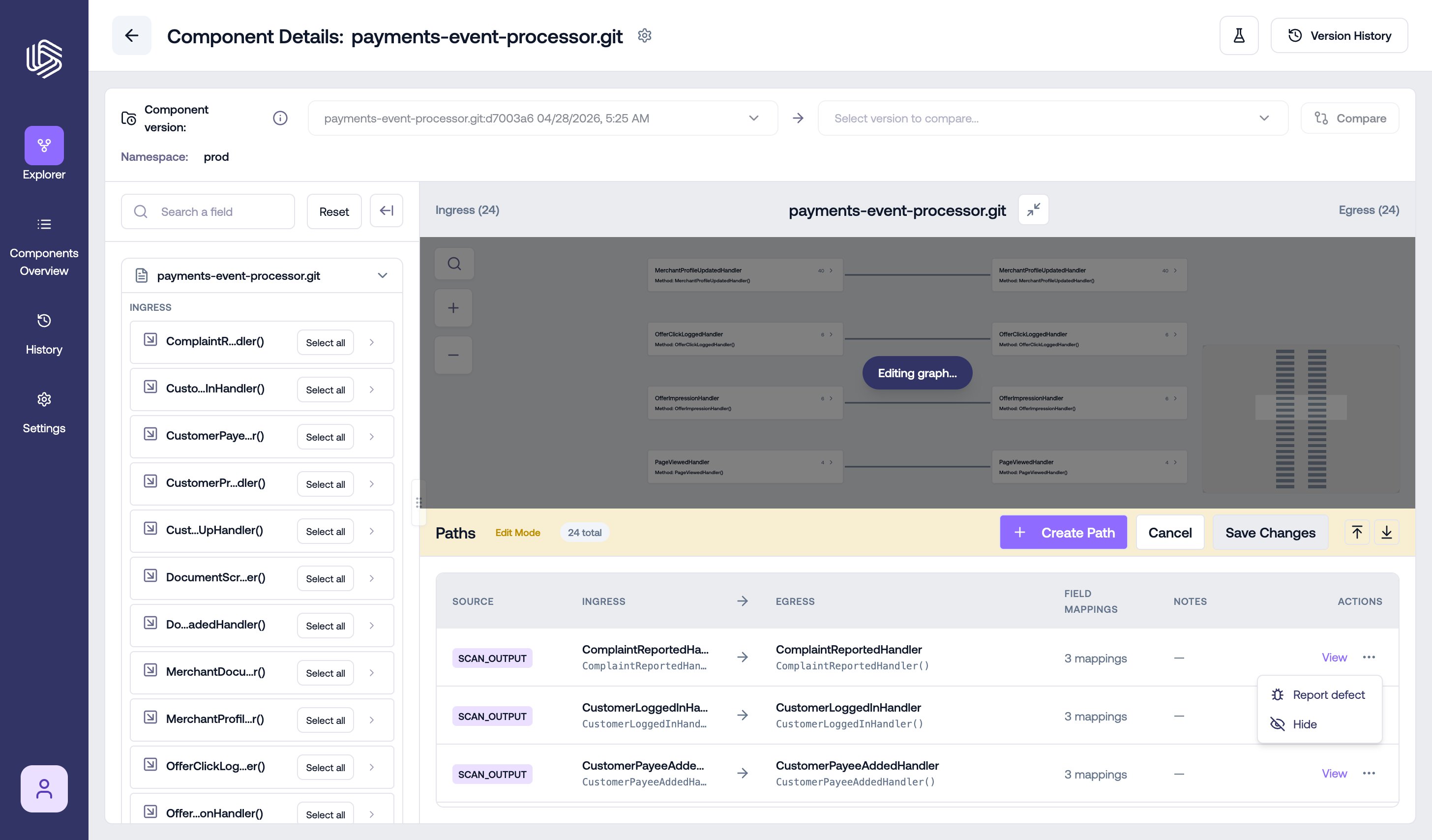 Hidden scanned paths will continue to be suppressed on subsequent scans until they are manually unhidden.
To restore a hidden path:
1. Enter **Edit Graph** mode.
2. Show disabled paths using the graph selector.
3. Find the hidden path.
4. Open the **Actions** menu.
5. Select **Unhide**.
## Viewing hidden paths
By default, hidden paths are not shown in the Component Details graph. To view hidden paths, use the **With disabled paths** / **Without disabled paths** selector at the top of the component graph.
Hidden scanned paths will continue to be suppressed on subsequent scans until they are manually unhidden.
To restore a hidden path:
1. Enter **Edit Graph** mode.
2. Show disabled paths using the graph selector.
3. Find the hidden path.
4. Open the **Actions** menu.
5. Select **Unhide**.
## Viewing hidden paths
By default, hidden paths are not shown in the Component Details graph. To view hidden paths, use the **With disabled paths** / **Without disabled paths** selector at the top of the component graph.
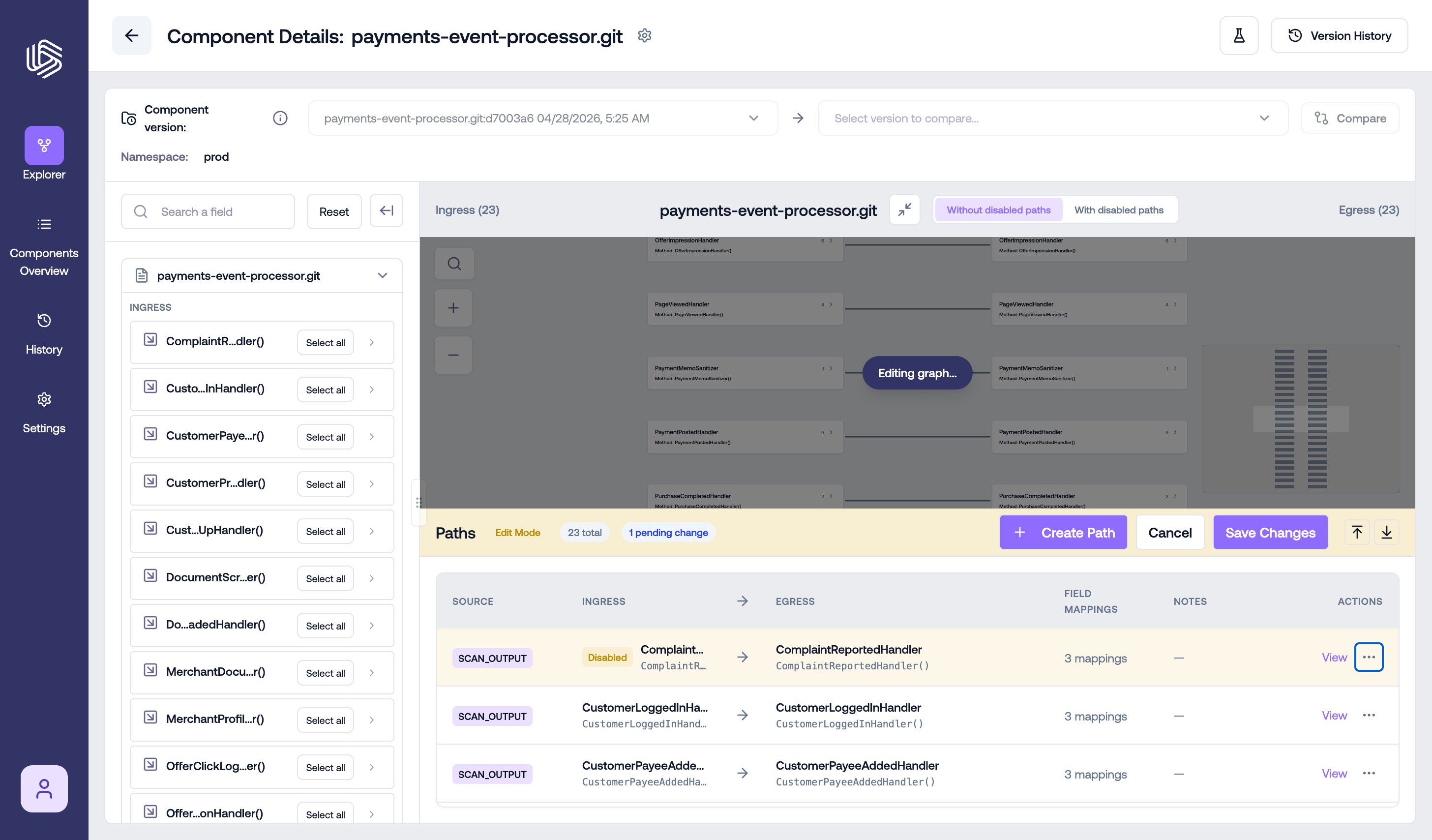 Hidden paths are shown in the Paths table with a `Disabled` tag to indicate their status.
## Creating a path override
If a path is missing or a scanned path needs to be replaced, you can create a path override.
To create a path override:
1. Open the **Paths** table.
2. Select **Edit Graph** to enter edit mode.
3. Select **Create Path**.
Hidden paths are shown in the Paths table with a `Disabled` tag to indicate their status.
## Creating a path override
If a path is missing or a scanned path needs to be replaced, you can create a path override.
To create a path override:
1. Open the **Paths** table.
2. Select **Edit Graph** to enter edit mode.
3. Select **Create Path**.
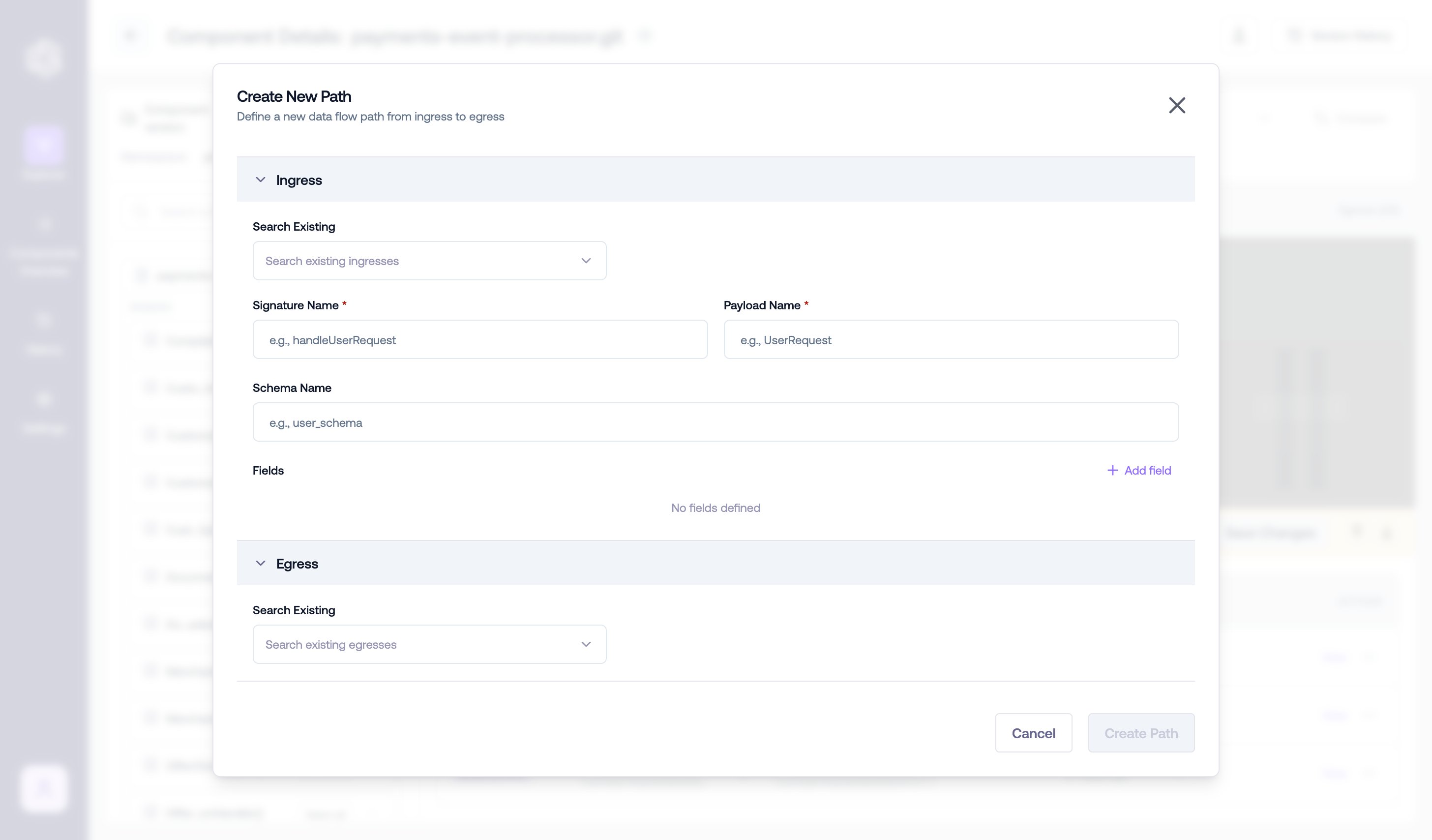 Enter the path information, including:
* **Ingress** — the incoming object or schema for the path
* **Egress** — the outgoing object or schema for the path
* **Field schema** — the fields available on the ingress and egress objects
* **Field mappings** — the relationships between ingress fields and egress fields
* **Code steps** — optional details about the code flow, transformations, or intermediate logic along the path
* **Notes** — optional context for reviewers or future users
After entering the path information, click **Create Path**.
The new path will appear in the **Paths** table with a source of `USER_OVERRIDE`. Once all desired suppressions and overrides are in place, click **Save**.
## Understanding saved changes
When you save changes:
* hidden scanned paths *remain suppressed* until manually unhidden
* user-created path overrides are retained as manually managed lineage
* future scans may add new scanned paths, but they do not automatically remove saved overrides
Paths can also be managed programmatically — see the [`gable lineage component path`](/docs/cli/lineage/component/path) CLI commands.
Enter the path information, including:
* **Ingress** — the incoming object or schema for the path
* **Egress** — the outgoing object or schema for the path
* **Field schema** — the fields available on the ingress and egress objects
* **Field mappings** — the relationships between ingress fields and egress fields
* **Code steps** — optional details about the code flow, transformations, or intermediate logic along the path
* **Notes** — optional context for reviewers or future users
After entering the path information, click **Create Path**.
The new path will appear in the **Paths** table with a source of `USER_OVERRIDE`. Once all desired suppressions and overrides are in place, click **Save**.
## Understanding saved changes
When you save changes:
* hidden scanned paths *remain suppressed* until manually unhidden
* user-created path overrides are retained as manually managed lineage
* future scans may add new scanned paths, but they do not automatically remove saved overrides
Paths can also be managed programmatically — see the [`gable lineage component path`](/docs/cli/lineage/component/path) CLI commands.