

Where field mappings appear
Open a component’s Component Details page and go to the Known dependencies section. Each row is a field mapping — the ingress field on the left, the egress field it becomes on the right — grouped by ingress and egress.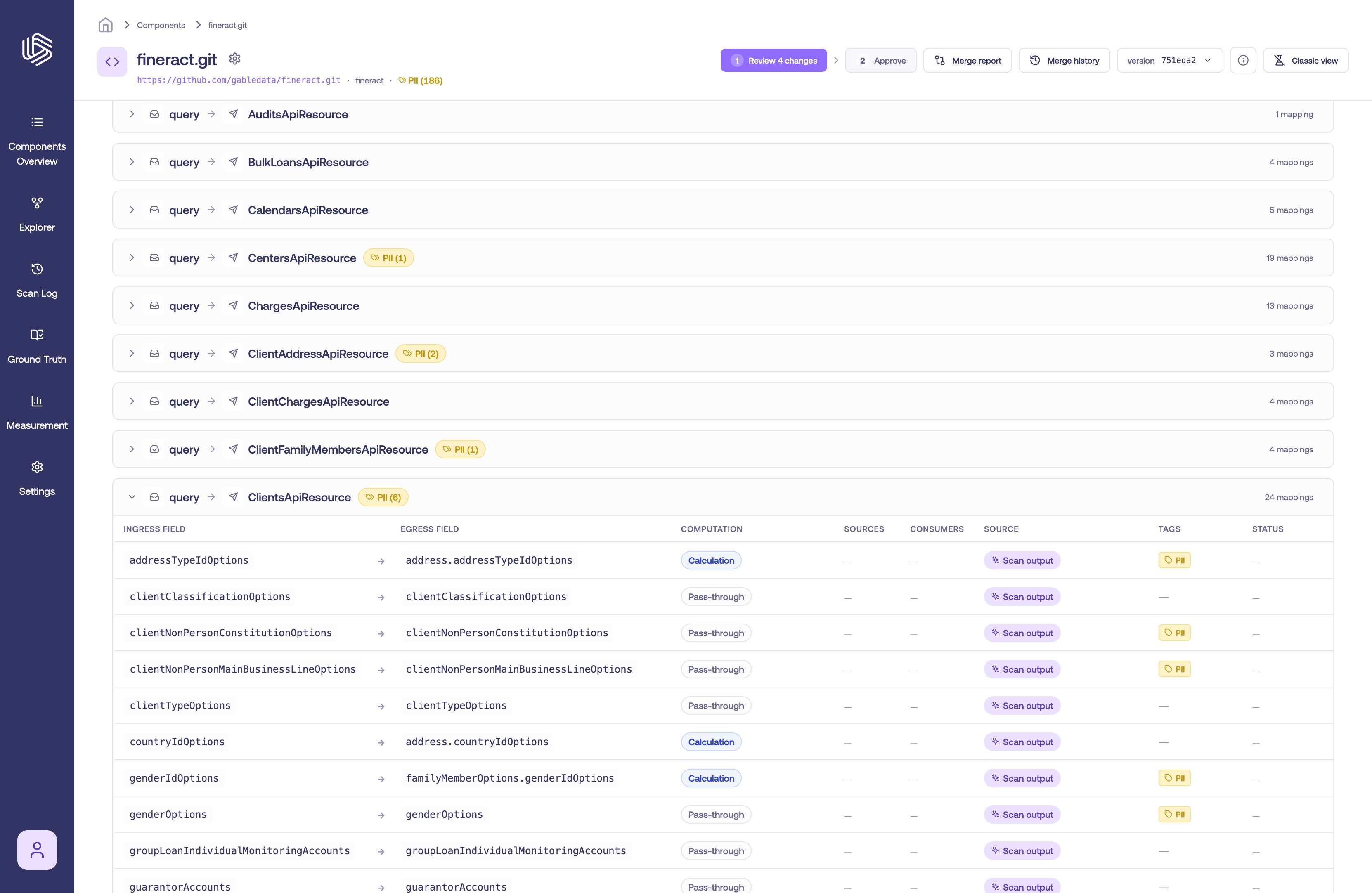
Field mappings in the Known dependencies section
- Scan output — the mapping was detected by Gable’s analysis of your code.
- Override — the mapping was added or edited by a person.
- Disabled — a scanned mapping that has been suppressed and no longer contributes to lineage.
Inspect and act on a mapping
Selecting a field mapping opens a panel with its ingress and egress payloads, its connections, its code paths, and the actions for correcting it. Use the arrows in the panel header to page through mappings without closing it.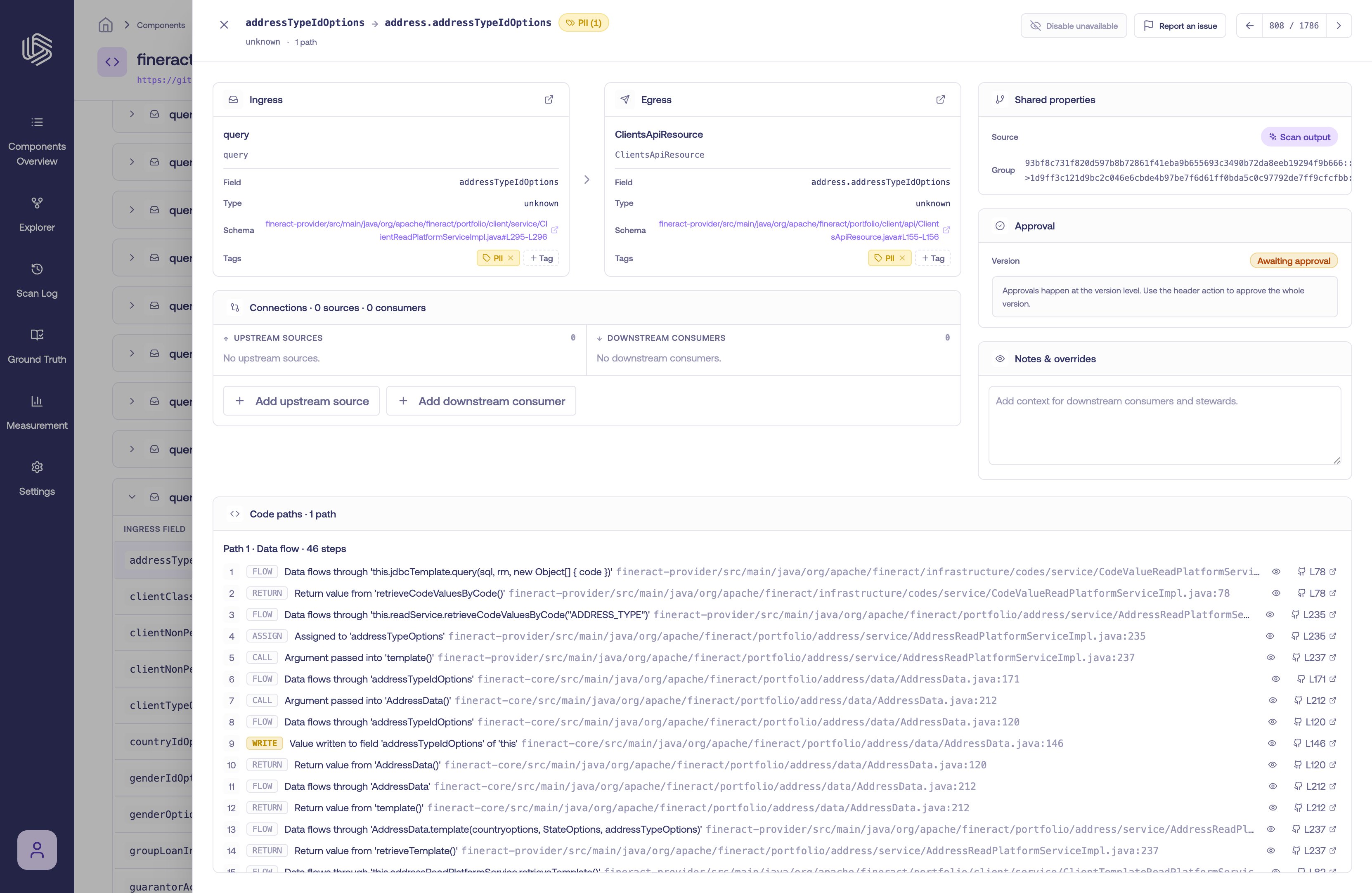
A field mapping's details panel
- Add a mapping that the scan missed — use Add upstream source or Add downstream consumer in the Connections card to record a mapping that the scan didn’t capture. These are retained as manually managed overrides.
- Add context — use Notes & overrides to leave a note for downstream consumers and stewards.
- Report a defect — flag a scanned mapping that looks wrong (see below).
- Suppress a scanned mapping — disable a mapping that doesn’t represent real lineage (see below).
Report a defect
Report a defect when a scanned mapping appears incorrect, incomplete, or unexpected — for example, the ingress or egress field is wrong, expected mappings are missing, or the mapping represents lineage that does not exist.- Select the field mapping to open its details panel.
- Select Report an issue in the panel header.
- In the Report defect dialog, describe the issue, describe what you expected instead, and choose a Severity.
- Select Submit.
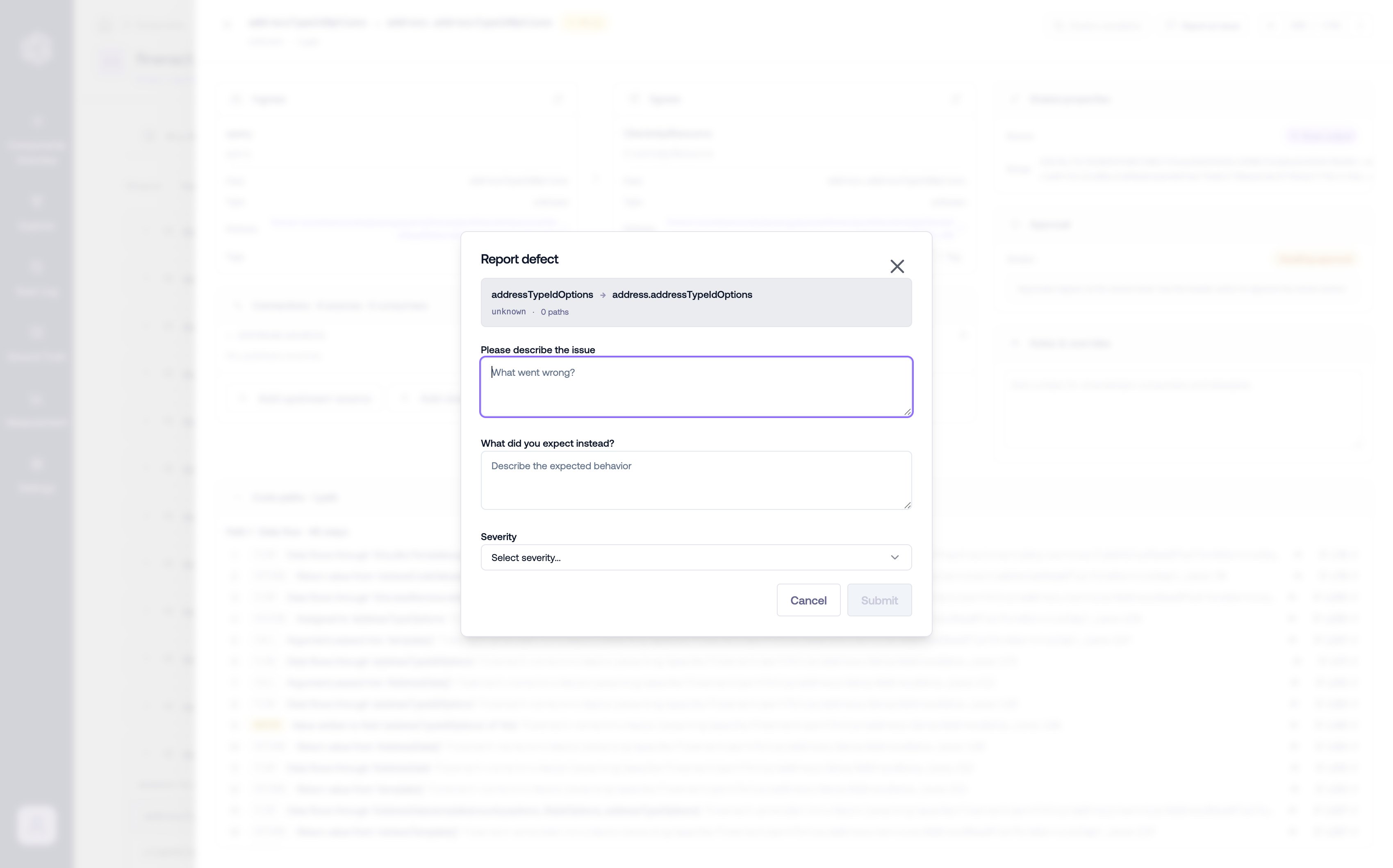
Reporting a defect on a field mapping
Suppress a scanned mapping
When a scanned mapping doesn’t represent real lineage, disable it so it no longer contributes downstream.- Select the field mapping to open its details panel.
- Select Disable in the panel header.
Refine lineage on the Lineage quality tab
The Lineage quality tab collects the manual work on a component in one place. It summarizes the count of scan-inferred mappings, manual overrides, and disabled paths, and lets you filter to just the overrides or disabled paths to review them.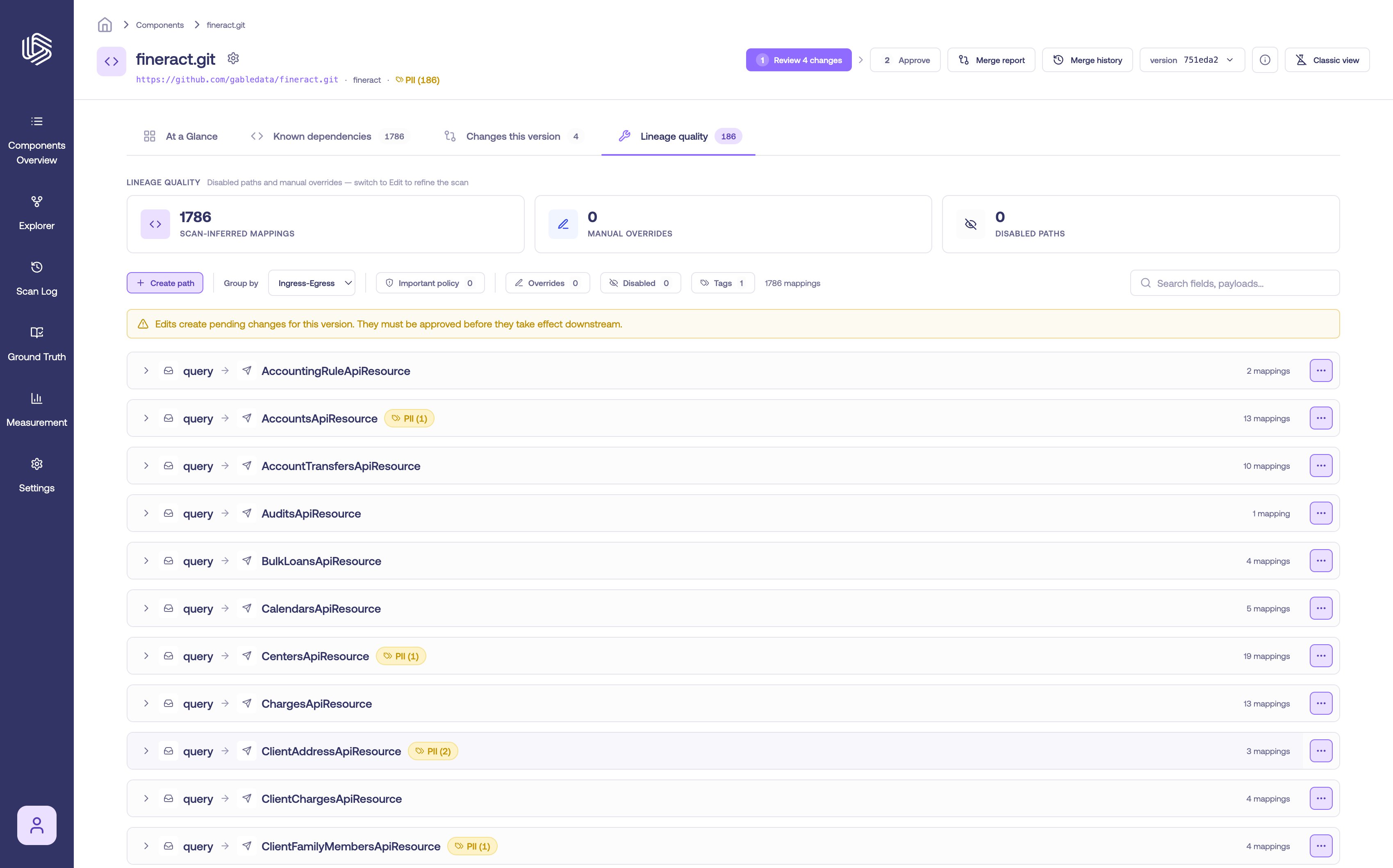
The Lineage quality tab
Create a path override
When the scan missed a relationship entirely, create a new path to record it.- On the Lineage quality tab, select Create path.
- Define the Ingress payload — a payload name and its fields.
- Define the Egress payload — a payload name and its fields.
- Under Field mappings, pair each ingress field with the egress field it becomes.
- Optionally attach the Code steps that move the data and add Notes.
- Select Create path.
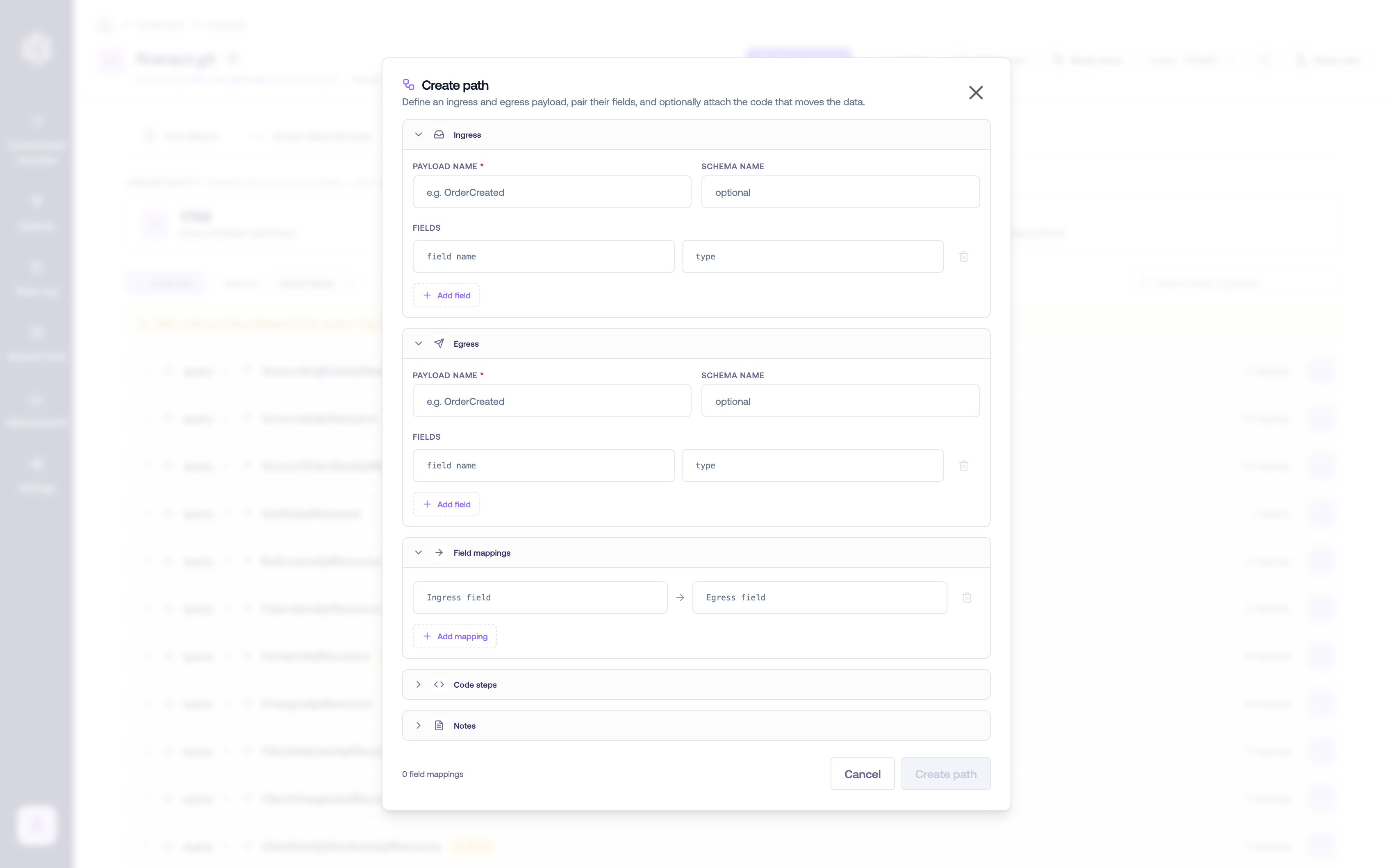
Creating a path override
Edits create pending changes for the version. They must be approved before they take effect downstream — see Approvals.