

System-generated PII tags
When Gable analyzes a service, it inspects each field and automatically applies a built-in PII tag to fields that appear to contain personal information (for example, fields that look like an email address, social security number, or credit card number). These system-generated tags require no setup — they appear on matching fields as soon as the component is scanned. System-generated tags are shown as tag chips on the field, the same as tags you add yourself. Hover a chip to see whether it was applied by Gable or by a person.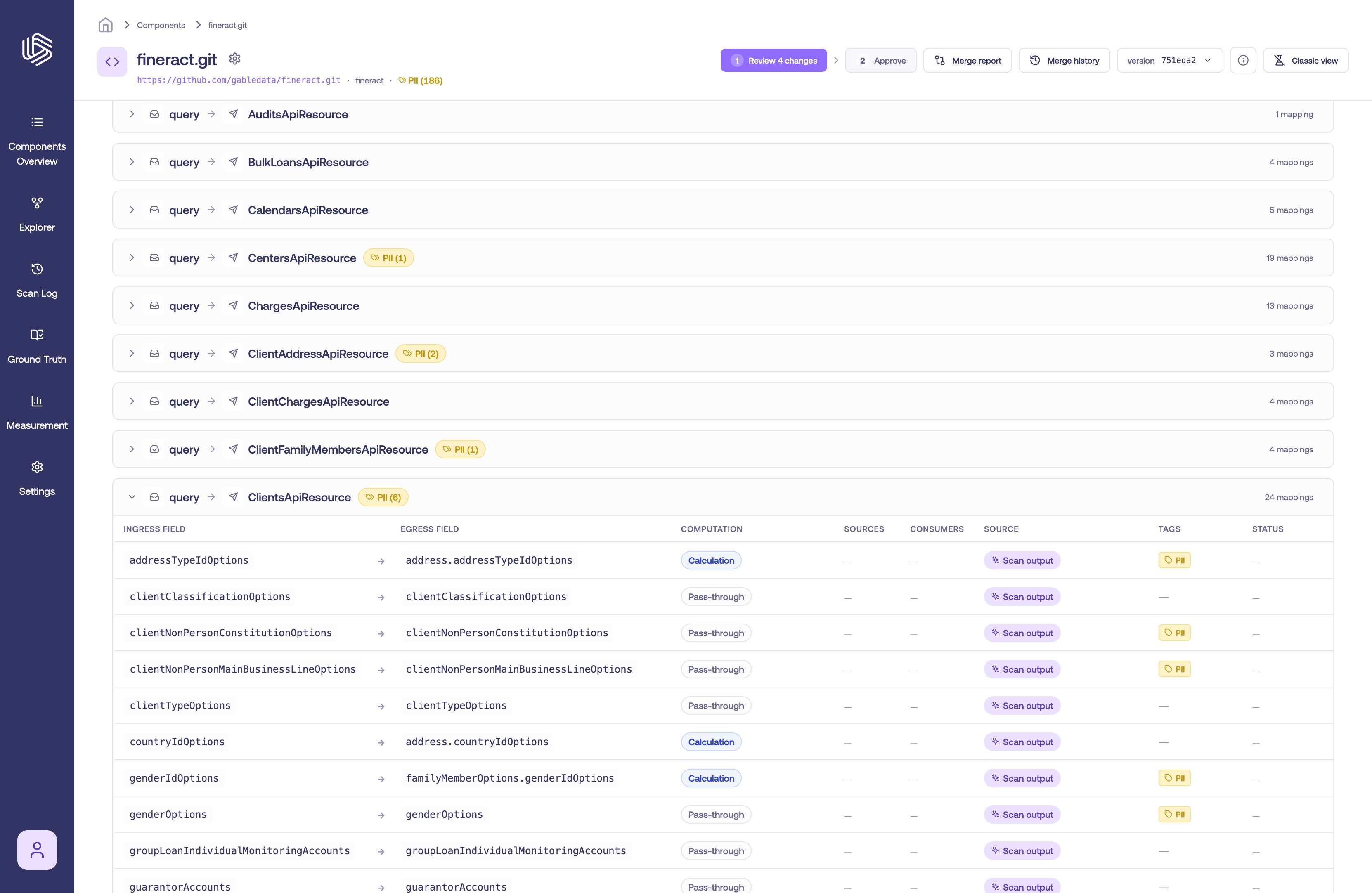
A system-generated PII tag on a field
Tag categories
Gable includes a set of built-in tags you can apply:- PII — personal information (also applied automatically, as described above)
- PHI — protected health information
- PIFI — personal financial information
- Secret — secrets and credentials
Tag a field
Tags are managed on the field’s card in the Component Details page.- Open Component Details for the component and locate the field (on an ingress or egress payload).
- In the field’s Tags row, select the Tag button.
- In the tag picker, search for a tag and select it to apply. To create a new tag for your organization, select Create new tag and fill in the tag’s details.
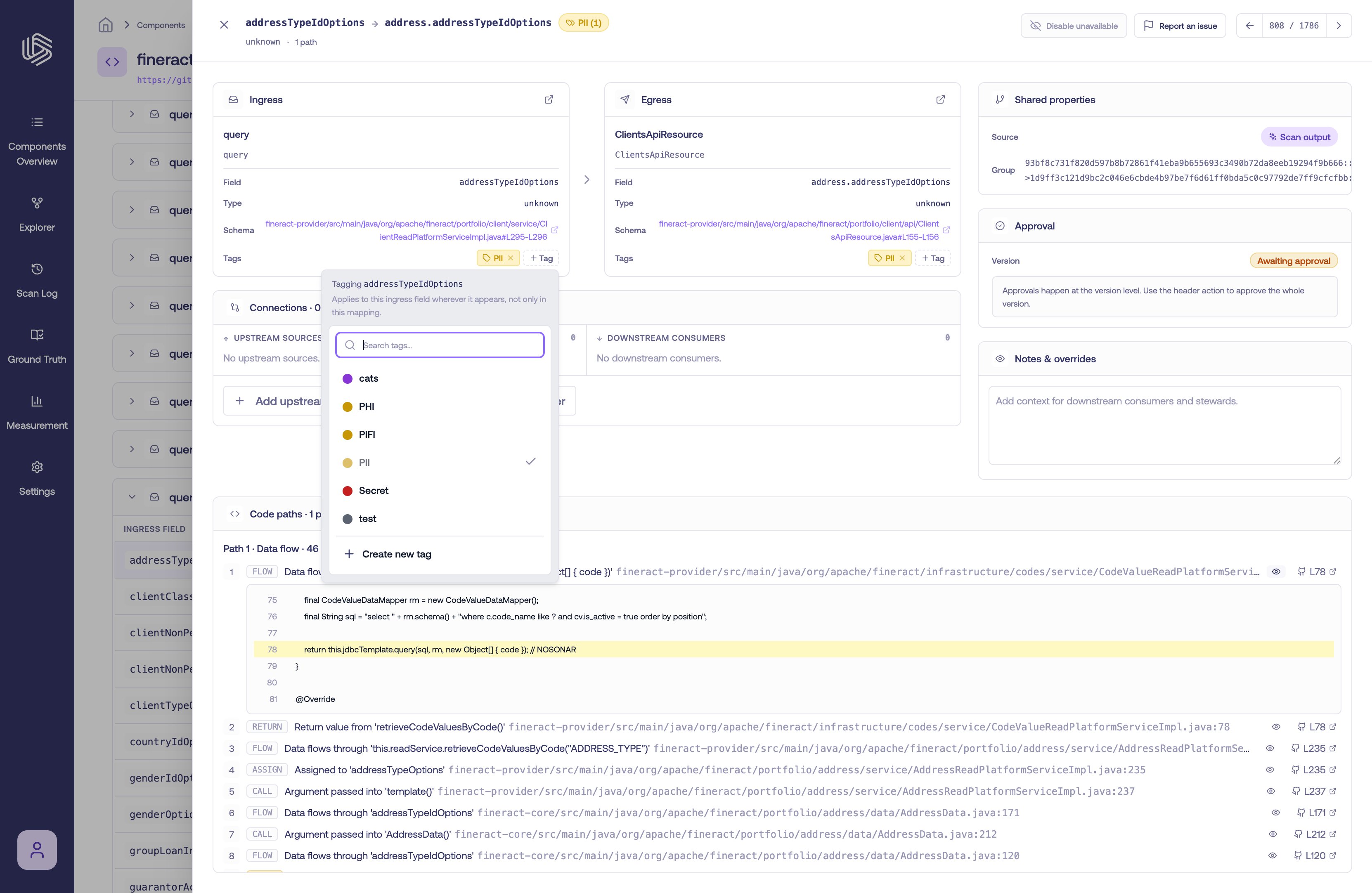
Adding a tag to a field
Remove a tag
To remove a tag from a field, select the × on the tag chip. System-generated tags can be removed the same way if they don’t apply.Where tags appear
Once fields are tagged, tags surface across the Component Details page so you can find sensitive data quickly:- Header summary — a count of tagged fields for the component.
- Known dependencies — a Tags column on the field-mapping table.
- Tag filter — filter the mappings down to those carrying a specific tag.
- Lineage quality — a Tagged fields metric.
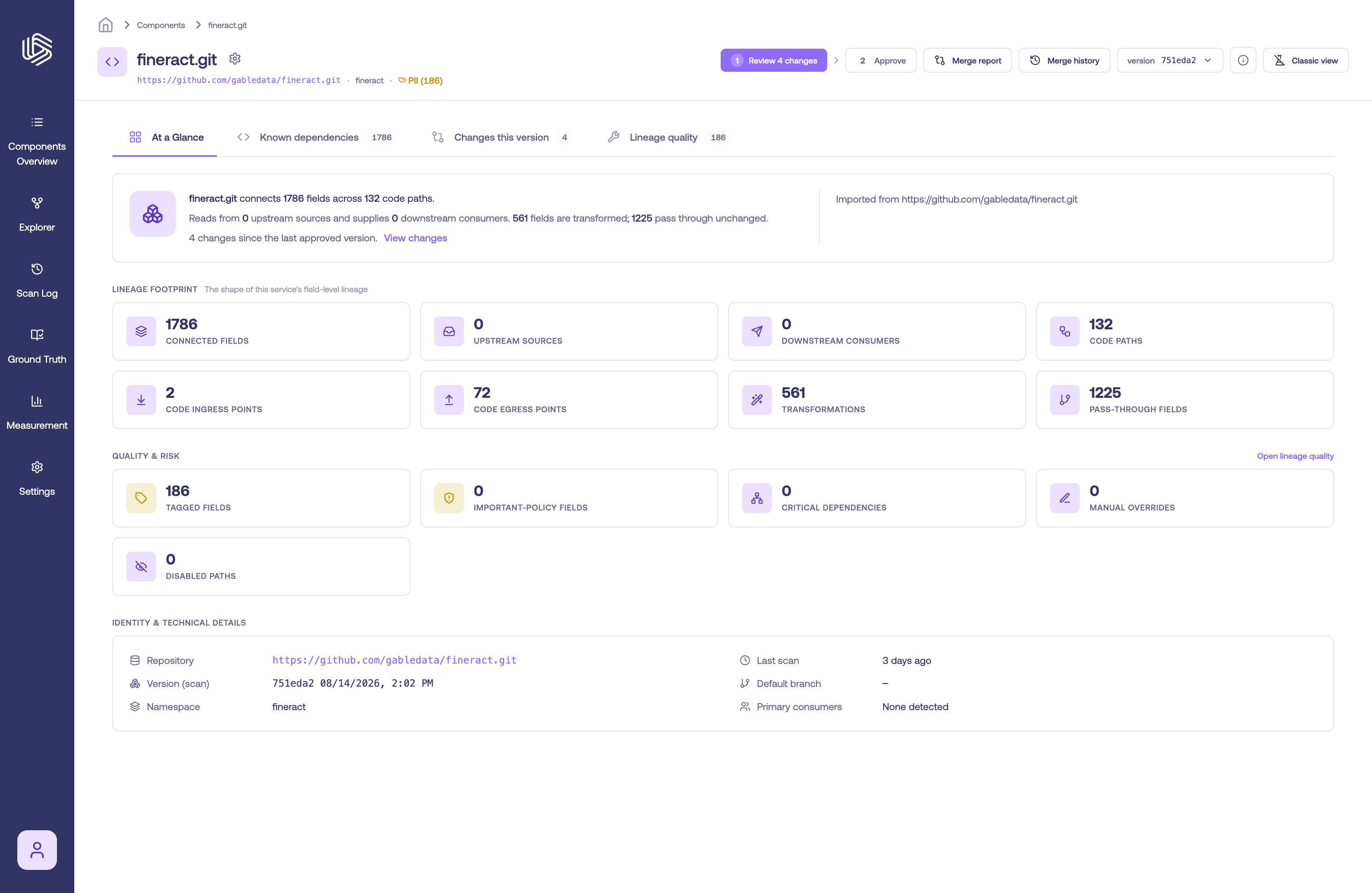
Tag summaries and the tag filter on the Component Details page